

macOS
S3 Client
MinIO is popular because it gives teams S3-compatible object storage in local, private, and self-hosted environments. Developers use it to test uploads, downloads, temporary links, and object workflows before production.
That makes MinIO useful for local development, staging systems, internal storage, and private infrastructure.
To use S3Panel with MinIO, create an access key and secret key in MinIO, then add the endpoint to S3Panel as an S3-compatible connection. The endpoint often looks like a local or private URL, depending on where MinIO runs.
Make sure network access is available from the device running S3Panel. If MinIO is behind a VPN, private LAN, or tunnel, the app must be able to reach it.
Local S3 testing is more useful when the data resembles production. Create folders, nested prefixes, large file names, and common object types your app actually uses.
Test these actions:
Do not reuse production S3 credentials for MinIO tests. Keep local and production credentials separate so mistakes stay contained.
For teams, it is also useful to name connections clearly: local-minio, staging-minio, prod-s3, and so on.
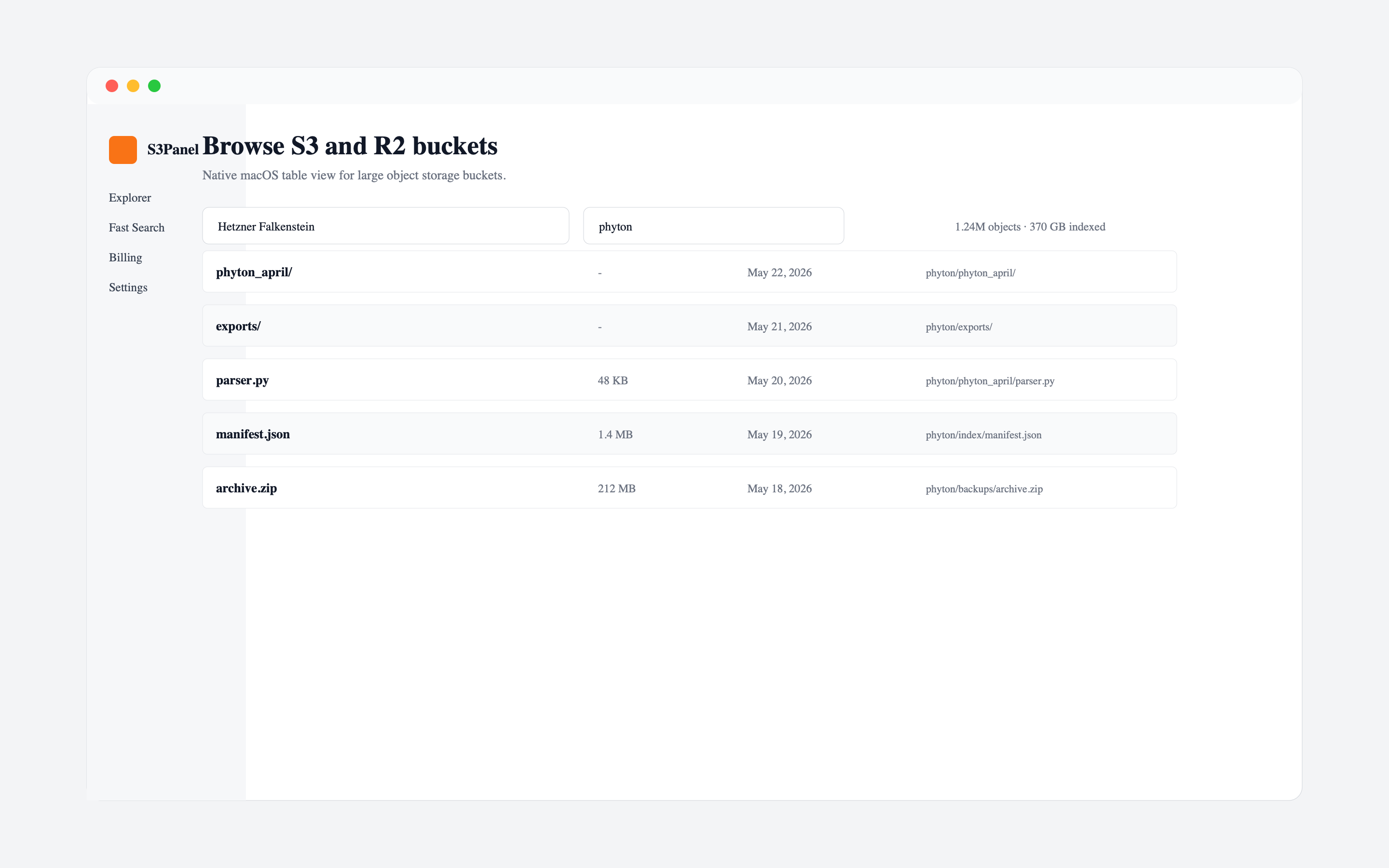
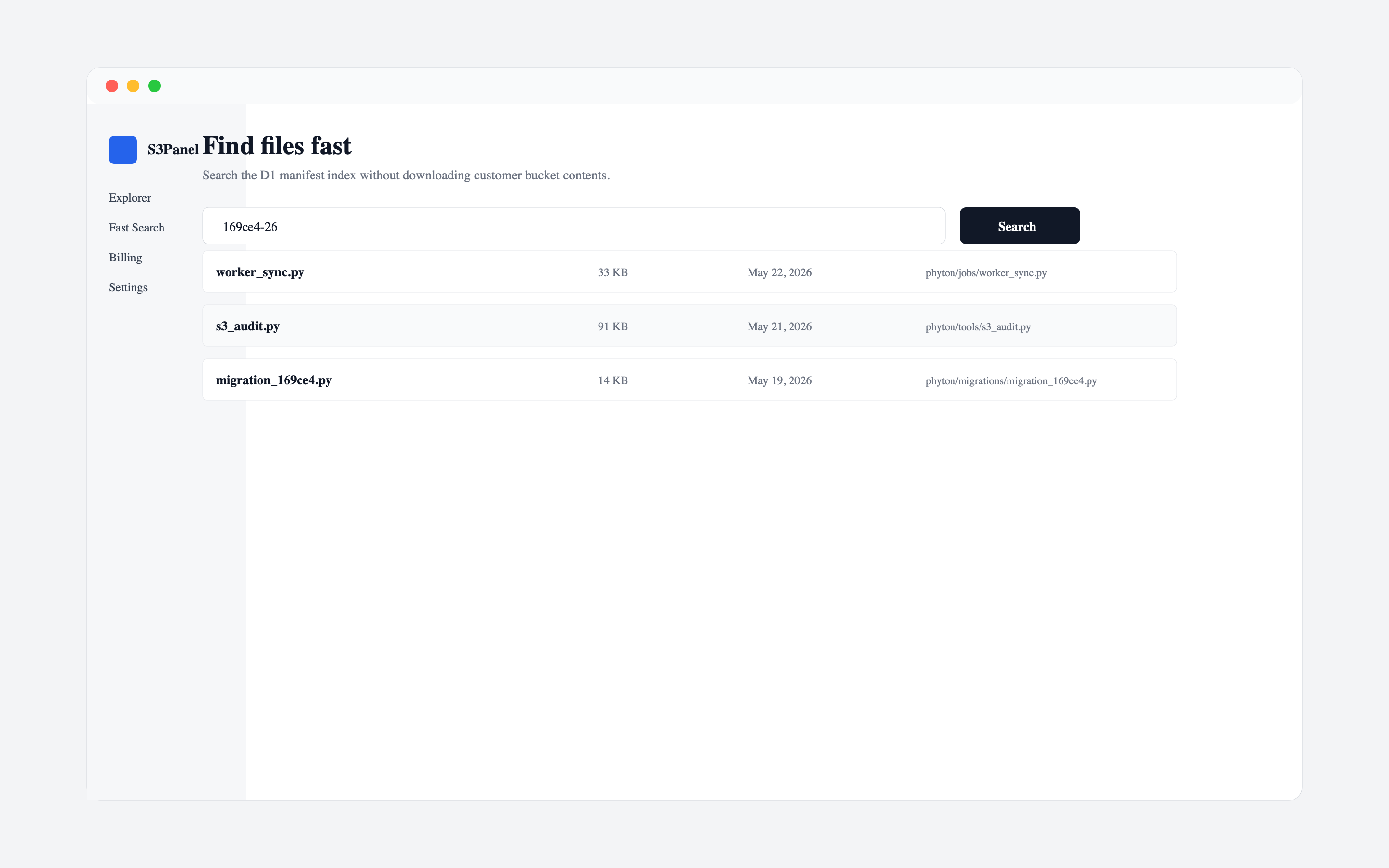
S3Panel is useful with MinIO because it gives developers and operations teams the same style of object storage workspace across local and hosted providers. That reduces context switching between local testing and production bucket work.
Use MinIO to test object workflows locally. Use S3Panel to browse, search, inspect, and validate those workflows in a visual interface before they reach production.
Continue with practical S3Panel guides for object storage teams.