S3Panel
S3Panel logo
features

Everything S3Panel does for serious object storage work.

S3Panel combines a focused object explorer, manifest-backed search, safe file operations, transfer history, folder sync planning, quick upload links, preview, metadata editing, provider coverage, and audit-ready account controls in one workspace.

S3Panel object storage explorer

Object work

Browse, inspect, preview, upload, download, copy, move, rename, zip, unzip, and delete.

Search and stats

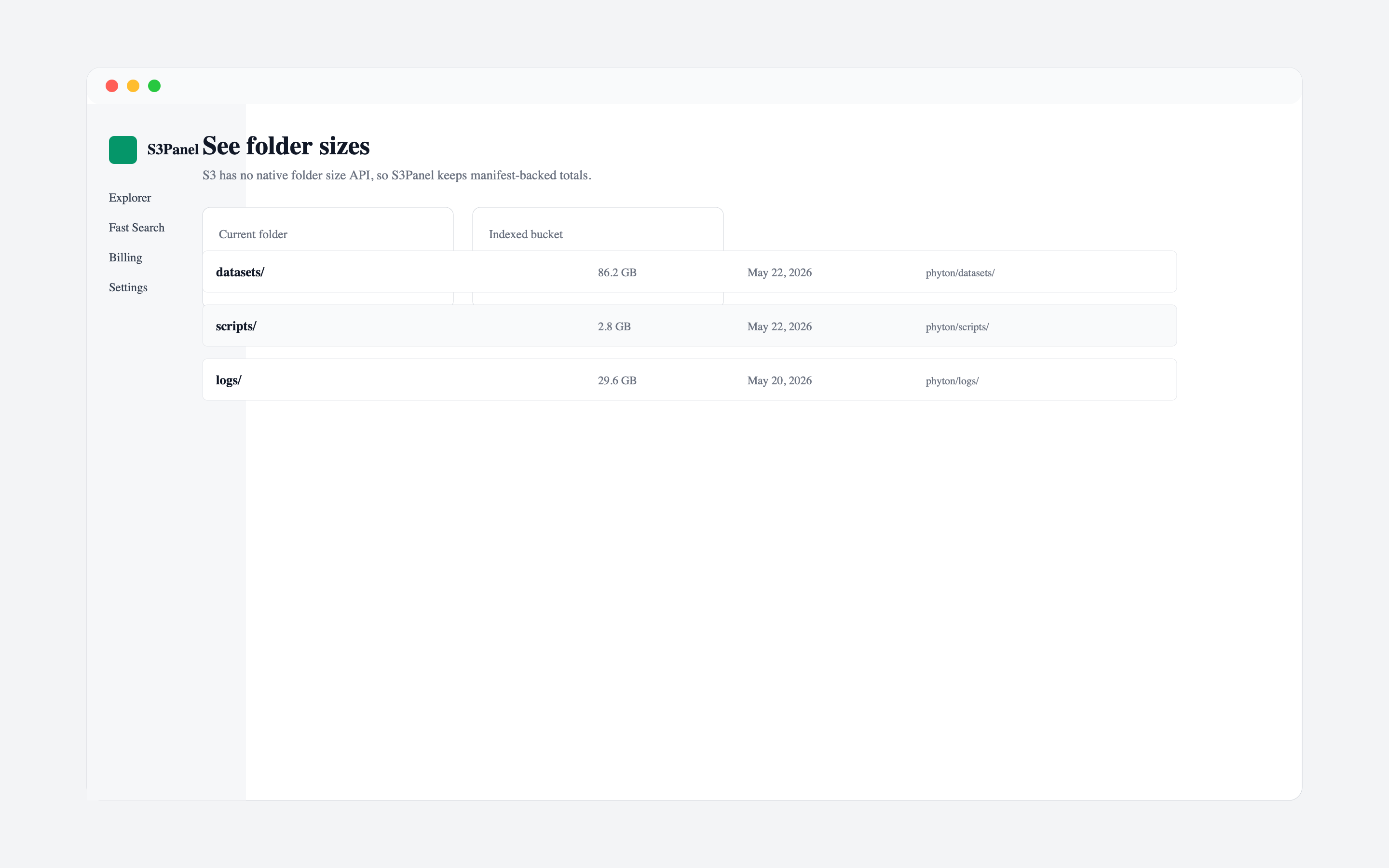
Use manifest metadata for object search, folder counts, and total sizes.

Bucket admin

Manage policy, lifecycle, website hosting, encryption, ACL, and versioning.

Transfers

Track multipart uploads, schedules, retry context, pause/resume, and history.

Sync planning

Scan local folders, preserve relative paths, and upload selected files manually.

Security

Use App Store distribution, Keychain sessions, audit logs, secure links, and optional Mac app lock.

Explorer01

Object explorer for large buckets

Browse buckets, prefixes, folders, and objects in a workspace made for S3-compatible storage instead of a generic file picker.

Search02

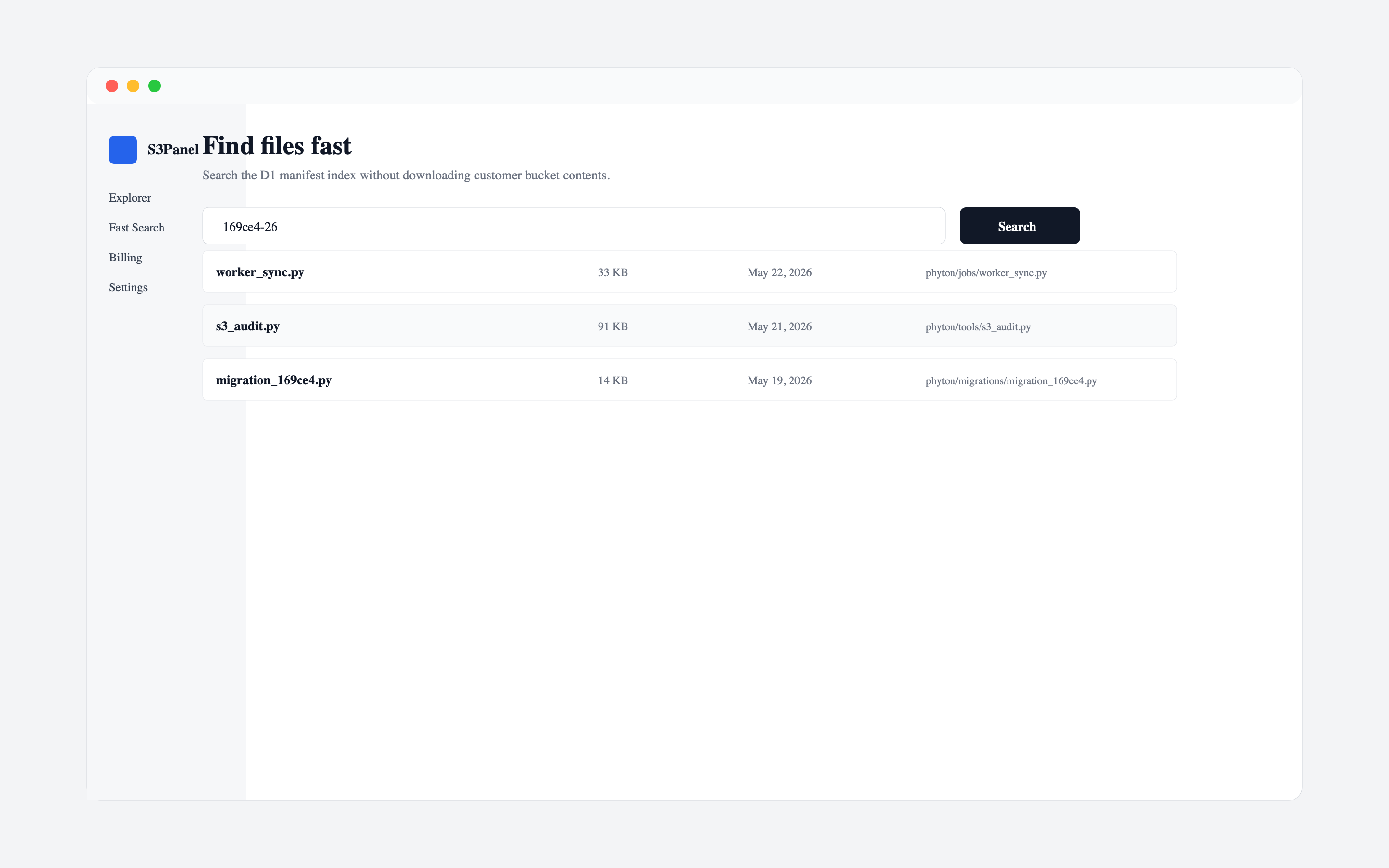
Manifest-backed search and folder stats

Create metadata manifests so repeated name, key, size, timestamp, and folder-total searches feel fast even in large buckets.

Operations03

Safe file operations with clear feedback

Run everyday storage actions with visible task states, permission-aware behavior, and fewer destructive surprises.

Sharing04

Private buckets, temporary links

Create, copy, review, and revoke presigned links while keeping the original bucket private.

Providers05

S3-compatible providers in one panel

Use AWS S3, Cloudflare R2, Hetzner, MinIO, Wasabi, Backblaze B2, DigitalOcean Spaces, and custom endpoints.

Security06

Security, audit, and account control

Keep customer objects in their own storage provider while S3Panel manages account data, encrypted connection metadata, audit events, and billing state.

Bucket admin07

Bucket policy, lifecycle, website, encryption, ACL, and versioning controls

Configure advanced S3 bucket settings from the same workspace used for object browsing and search.

Transfers08

Transfer Manager with scheduling, retry, pause, resume, and multipart options

Track uploads, downloads, archives, share links, and metadata tasks with progress, history, retry context, scheduling, bandwidth limits, and pause/resume controls.

Quick links09

Quick Upload and Get Link from the app or Mac menu bar

Upload a file and create a temporary share link in the same flow, including a native macOS menu bar Quick Upload entry.

Preview10

File Preview for common object types

Open selected images, documents, text files, and supported media from the storage workspace before downloading or sharing.

Metadata11

Object Metadata editor

Inspect and update content type, cache-control, and custom metadata for S3-compatible objects without leaving the workspace.

Sync12

Folder Sync Planner for local-to-bucket uploads

Scan a local folder, preserve relative paths, save schedule and Wi-Fi-only planning metadata, then manually upload selected files to S3/R2.

Shortcuts13

Shortcuts and App Intents for Apple workflows

Expose S3Panel actions to Apple system surfaces so macOS, iPhone, and iPad users can start parameterized storage workflows faster.

01Explorer

Object explorer for large buckets

S3Panel separates provider connections, bucket selection, folder navigation, and object actions so teams can move through large storage accounts without losing context. It keeps bucket-level navigation clear while making common file operations available where they are needed.
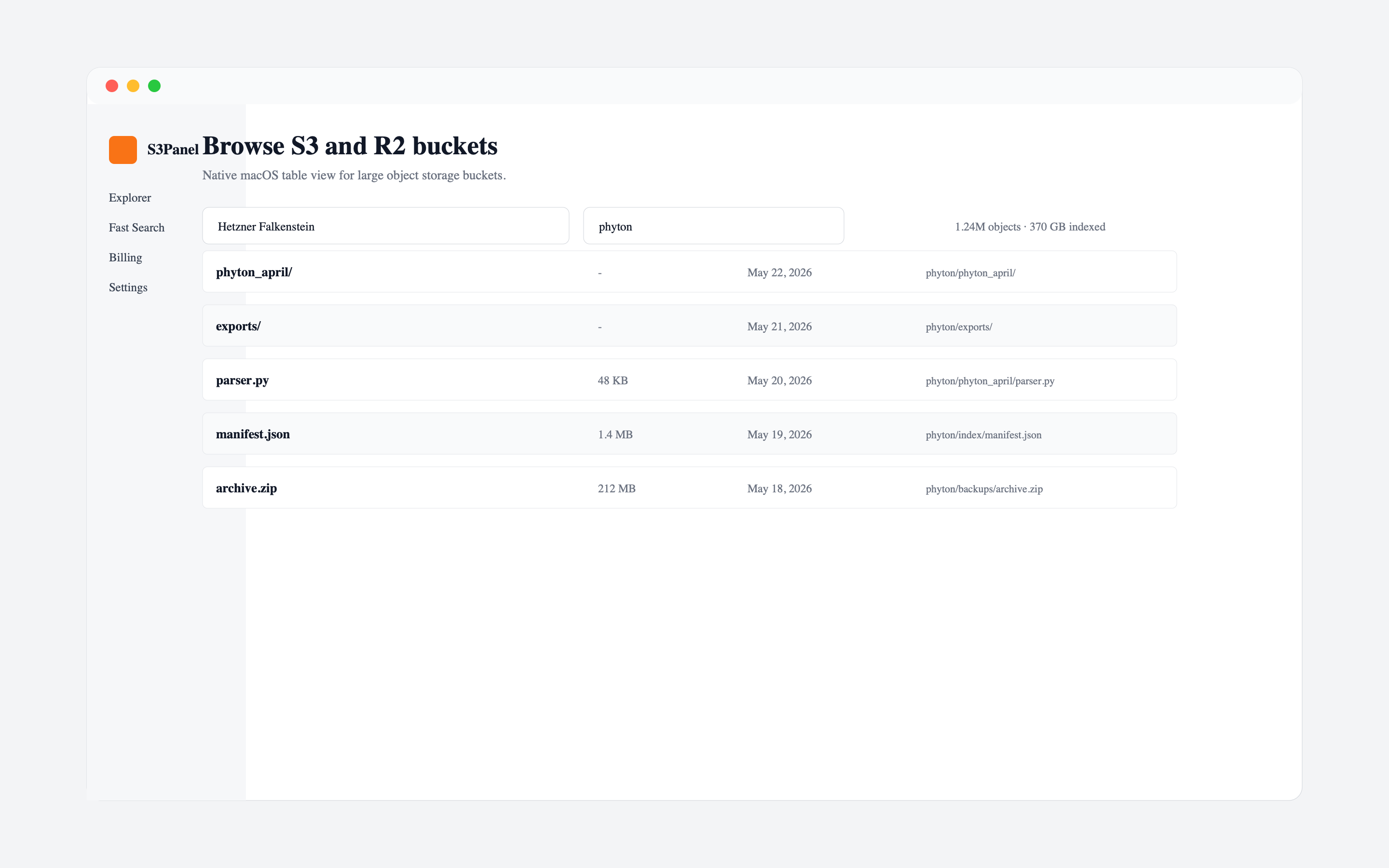
S3Panel object explorer showing buckets, folders, and files

What it includes

  • Connection and bucket switching
  • Prefix and folder navigation
  • Object metadata inspection
  • Upload, download, rename, copy, move, and delete actions

How teams use it

01Connect AWS S3, Cloudflare R2, MinIO, Wasabi, Hetzner, or a custom endpoint.
02Choose the bucket and prefix you want to work inside.
03Inspect object names, sizes, timestamps, content type, and storage metadata before acting.
03Operations

Safe file operations with clear feedback

S3Panel is built for repeated operational work: upload, download, copy, move, rename, duplicate, zip, unzip, and delete flows. Actions surface progress and errors clearly, and read-only credentials remain useful for browsing and search without pretending write operations are available.

S3Panel folder statistics and object operations view

What it includes

  • Copy, move, duplicate, rename, and delete flows
  • ZIP download and archive workflows
  • Destination bucket and folder picker
  • Operation progress and error states

How teams use it

01Select one object, many objects, or a folder prefix.
02Choose a destination bucket and folder when the operation needs one.
03Review task feedback and permission errors without leaving the workspace.
04Sharing

Private buckets, temporary links

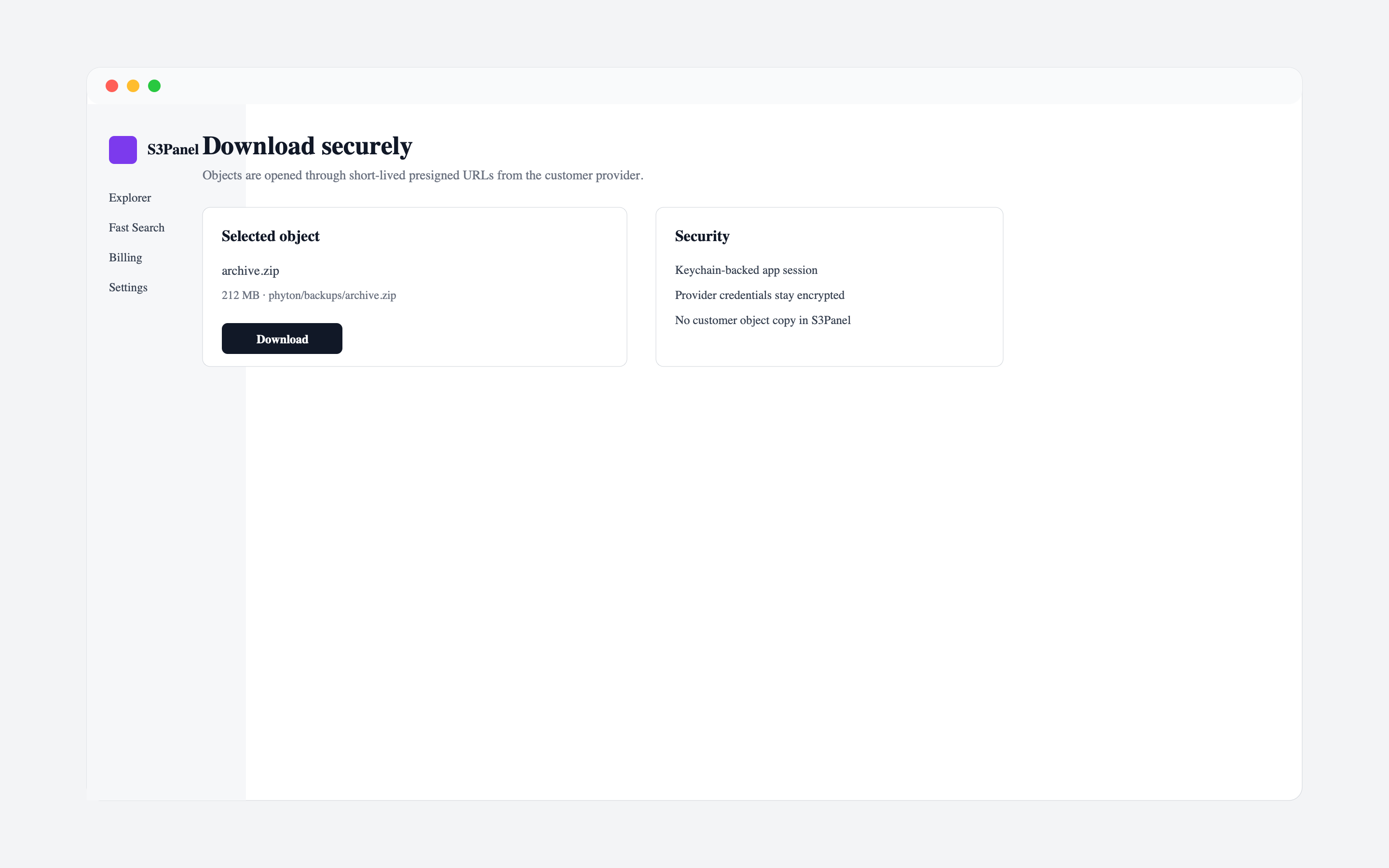
S3Panel helps teams share selected files through temporary presigned URLs instead of changing bucket-wide access. The share-link manager keeps created links visible so they can be copied, checked, and revoked when they are no longer needed.

S3Panel secure download and presigned link flow

What it includes

  • Temporary presigned downloads
  • Share link manager
  • Private bucket-first workflow
  • Revocation and audit visibility

How teams use it

01Pick the object that should be shared.
02Create a temporary link without making the bucket public.
03Review active links and revoke access when the share is finished.
05Providers

S3-compatible providers in one panel

Many teams operate across more than one S3-compatible provider. S3Panel keeps provider-specific connection details in one interface while keeping object work consistent across buckets and endpoints.

S3Panel explorer connected to S3-compatible storage

What it includes

  • Cloudflare R2 and AWS S3
  • Custom endpoint and region configuration
  • Provider-specific credential storage
  • Consistent bucket operations across endpoints

How teams use it

01Add each provider with endpoint, region, and credentials.
02Use least-privilege keys per environment or customer.
03Switch providers without switching tools or browser consoles.
06Security

Security, audit, and account control

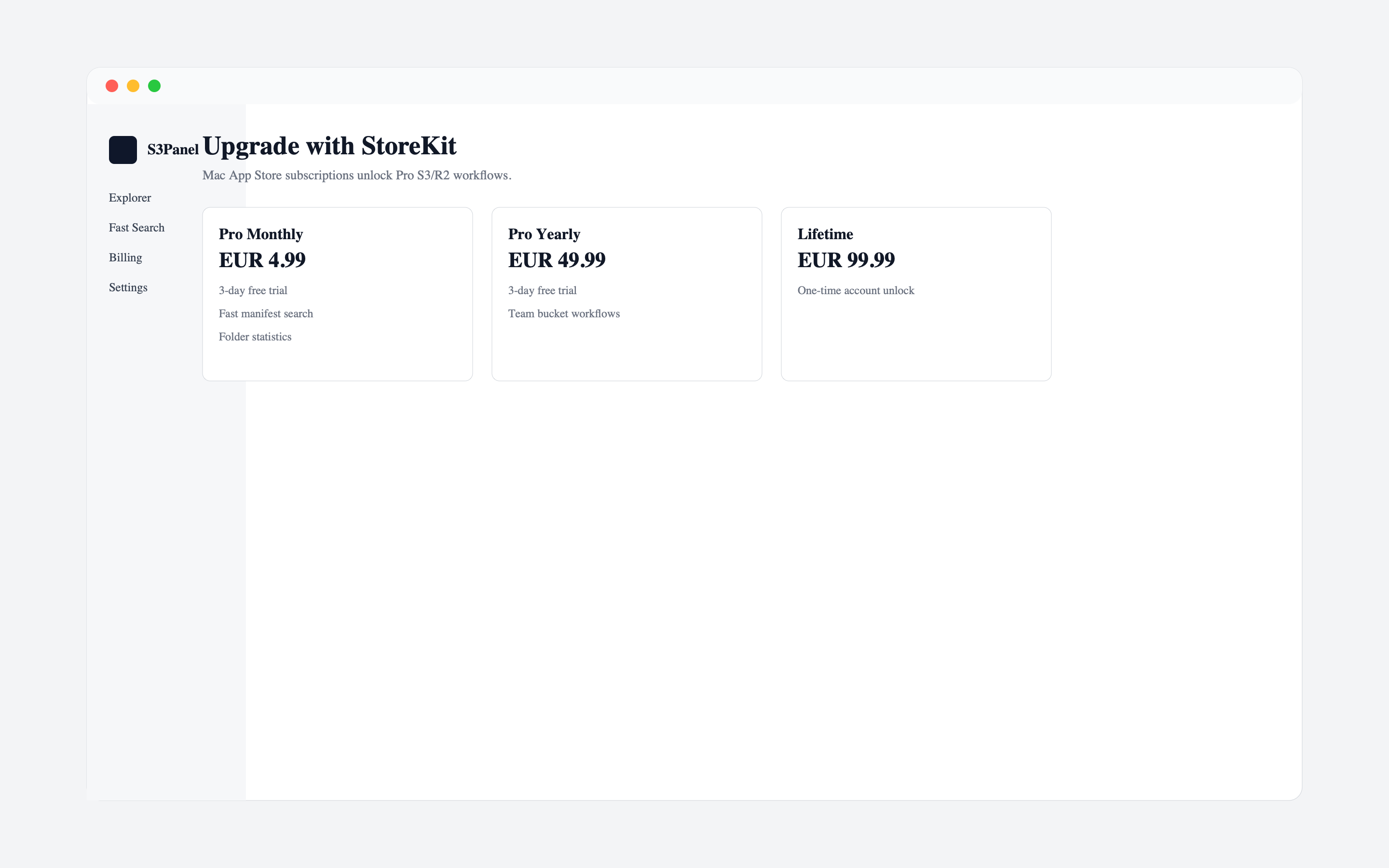
S3Panel is a control surface, not a storage host. Customer object contents remain in the provider account. The product focuses on least-privilege credentials, permission-aware operations, audit records, account deletion, and App Store or web billing access.

S3Panel billing and account access screen

What it includes

  • Customer bucket contents stay with the provider
  • Encrypted connection metadata
  • Optional Mac app lock with Touch ID or Mac password
  • Audit events for storage actions
  • Account deletion and billing controls

How teams use it

01Create dedicated storage credentials with only the permissions S3Panel needs.
02Enable app lock on Mac when local workstations need an extra privacy boundary.
03Use audit records to understand what changed and when.
04Delete S3Panel account data without deleting customer-owned bucket objects.
07Bucket admin

Bucket policy, lifecycle, website, encryption, ACL, and versioning controls

S3Panel adds dedicated bucket administration screens for teams that need more than upload and download. Where the connected provider supports the API, users can review or update bucket policy JSON, lifecycle expiration rules, static website hosting, default server-side encryption, ACL presets, and bucket versioning without leaving the S3/R2 workflow.

S3Panel bucket administration controls for policy, lifecycle, website, encryption, ACL, and versioning

What it includes

  • Bucket policy JSON editor
  • Lifecycle expiration and multipart cleanup rules
  • Static website hosting configuration
  • Default encryption, ACL, and versioning controls

How teams use it

01Choose the connection and bucket that needs administration.
02Open Bucket Admin and review provider-supported settings in one dialog.
03Save policy, lifecycle, website, encryption, ACL, or versioning updates with permission-aware feedback.
08Transfers

Transfer Manager with scheduling, retry, pause, resume, and multipart options

Large object storage work needs more feedback than a spinning button. S3Panel groups transfer and operation activity into a dedicated task center, and advanced uploads can use automatic or multipart mode, part-size tuning, retry limits, scheduled starts, bandwidth limits, server-side encryption, and SHA-256 checksum options.

S3Panel transfer manager and storage operation history

What it includes

  • Upload and download task states with pause/resume
  • Multipart upload, retry limit, and scheduled start options
  • Bandwidth limit, server-side encryption, and checksum settings
  • ZIP, share-link, and metadata operation history
  • Error visibility and retry context for failed storage actions

How teams use it

01Start an upload, download, ZIP, share-link, or metadata action.
02Open the task center to watch progress and review recent activity.
03Clear completed tasks when the operation queue is no longer needed.
10Preview

File Preview for common object types

S3Panel keeps preview close to object operations so users can confirm they have the right file before they download, rename, copy, or share it. Preview support is available across the web workspace and native Apple entry points where the file type can be opened safely.

S3Panel file preview from the object explorer

What it includes

  • Preview before download
  • Image, document, text, and supported media checks
  • Works alongside secure download links
  • Useful for support and content review workflows

How teams use it

01Select an object from the explorer or search results.
02Open preview to confirm the content or file type.
03Download, share, rename, or copy only after verifying the object.
11Metadata

Object Metadata editor

Storage work often involves fixing how files behave after upload. S3Panel adds editable object properties so teams can correct content type, cache-control, and custom metadata directly from the explorer while keeping the original object in the connected provider.

S3Panel object metadata and properties panel

What it includes

  • Content-Type editing
  • Cache-Control editing
  • Custom metadata key-value fields
  • Permission-aware metadata update requests

How teams use it

01Open properties for an object that needs corrected headers.
02Edit cache, content type, or custom metadata fields.
03Save the metadata update through the connected provider credentials.
12Sync

Folder Sync Planner for local-to-bucket uploads

S3Panel adds a safer first step toward sync: local folder scanning and upload-only planning. Users can choose a folder, review generated object keys, select the files that should be uploaded, and start the job explicitly. The workflow avoids automatic deletes, remote-to-local writes, and unattended overwrites while still making recurring local-to-bucket work easier to organize.

S3Panel Folder Sync Planner for local-to-S3 bucket uploads

What it includes

  • Local folder scan with relative object paths
  • Upload-only sync jobs for web, iPhone, iPad, and Mac workflows
  • Manual confirmation before any object upload
  • Schedule and Wi-Fi-only markers for future background sync decisions
  • Large-file guidance back to advanced multipart upload

How teams use it

01Choose a local folder and target bucket.
02Review the remote prefix and object keys before upload.
03Upload selected files manually and track the job in Task Center or native transfer history.
13Shortcuts

Shortcuts and App Intents for Apple workflows

Native Apple users expect apps to fit the system. S3Panel includes App Intents for opening the explorer, starting quick upload workflows, searching objects, creating share links, checking the transfer queue, opening Folder Sync Planner, checking an object key, and reading release notes from macOS, iPhone, and iPad entry points. Upload, search, share-link, sync, and object-check intents accept useful parameters such as bucket, prefix, object key, and query.

S3Panel explorer opened from Apple Shortcuts and native workflows

What it includes

  • Open Explorer intent
  • Quick Upload workflow with bucket parameter
  • Search workflow with query and bucket parameters
  • Create Share Link workflow with bucket and object key parameters
  • Open Transfer Queue, Folder Sync Planner, and Object Check intents
  • Open Changelog and release notes

How teams use it

01Use Apple system shortcuts to open the right S3Panel workflow.
02Jump into explorer, quick upload, folder sync, object check, transfer queue, share-link, or changelog views.
03Keep native Mac and iOS actions aligned with the web product direction.
use cases

Built for teams that live inside object storage.

Agencies managing client buckets

Keep each customer connection separate, use least-privilege keys, and find files without switching provider consoles all day.

SaaS teams with large object stores

Inspect uploads, locate generated assets, understand folder growth, and share individual files without making buckets public.

Operations teams cleaning storage

Search by key, review folder totals, copy or move selected objects, and keep action history visible for support work.

What S3Panel stores

S3Panel stores account data, encrypted connection metadata, audit logs, billing state, and manifest records. It does not host or copy customer bucket contents into S3Panel storage.

What customers control

Customers control the provider account, bucket policy, object contents, and IAM or API credentials. S3Panel works best with dedicated least-privilege keys per environment or client.

Try the full S3Panel workflow with your own buckets.

Start with a 3-day trial, connect a limited-permission storage key, and test the explorer, search, folder stats, secure sharing, and operation flows.