
S3 Search
Large Buckets
Cloudflare R2 works through an S3-compatible API, so the Mac workflow starts with the same pieces you would expect from an S3 client: endpoint URL, access key, secret key, region value, and the bucket name. The safest setup is a scoped API token that can only reach the buckets and actions your team actually needs.
For daily work, avoid using account-wide credentials. Create one credential for browsing and search, then another credential for write operations if uploads, renames, or deletes are required. This makes the app easier to trust and easier to audit.
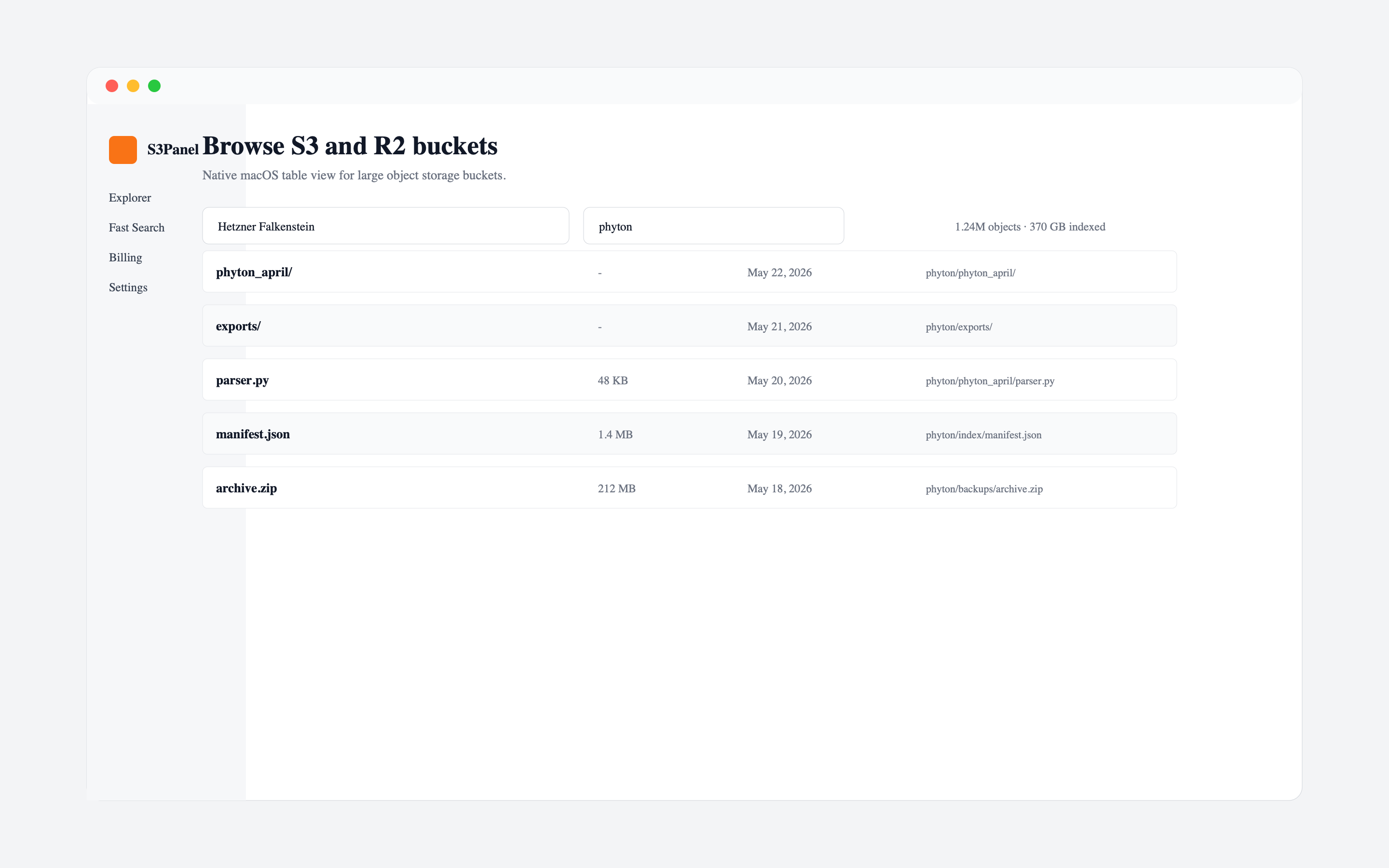
In S3Panel, add a new S3-compatible connection and choose Cloudflare R2 as the provider. Paste the R2 endpoint and credentials, then select the bucket you want to manage. After the connection is saved, the explorer opens with folders, object names, sizes, and modified dates in one workspace.
This is useful for teams that store app exports, videos, backups, customer files, or static assets in R2 and need a cleaner Mac workflow than switching between dashboards and command-line tools.
Large R2 buckets can become hard to navigate because object storage does not behave like a normal local folder. Prefixes can contain thousands of keys, and manually clicking through folders is slow.
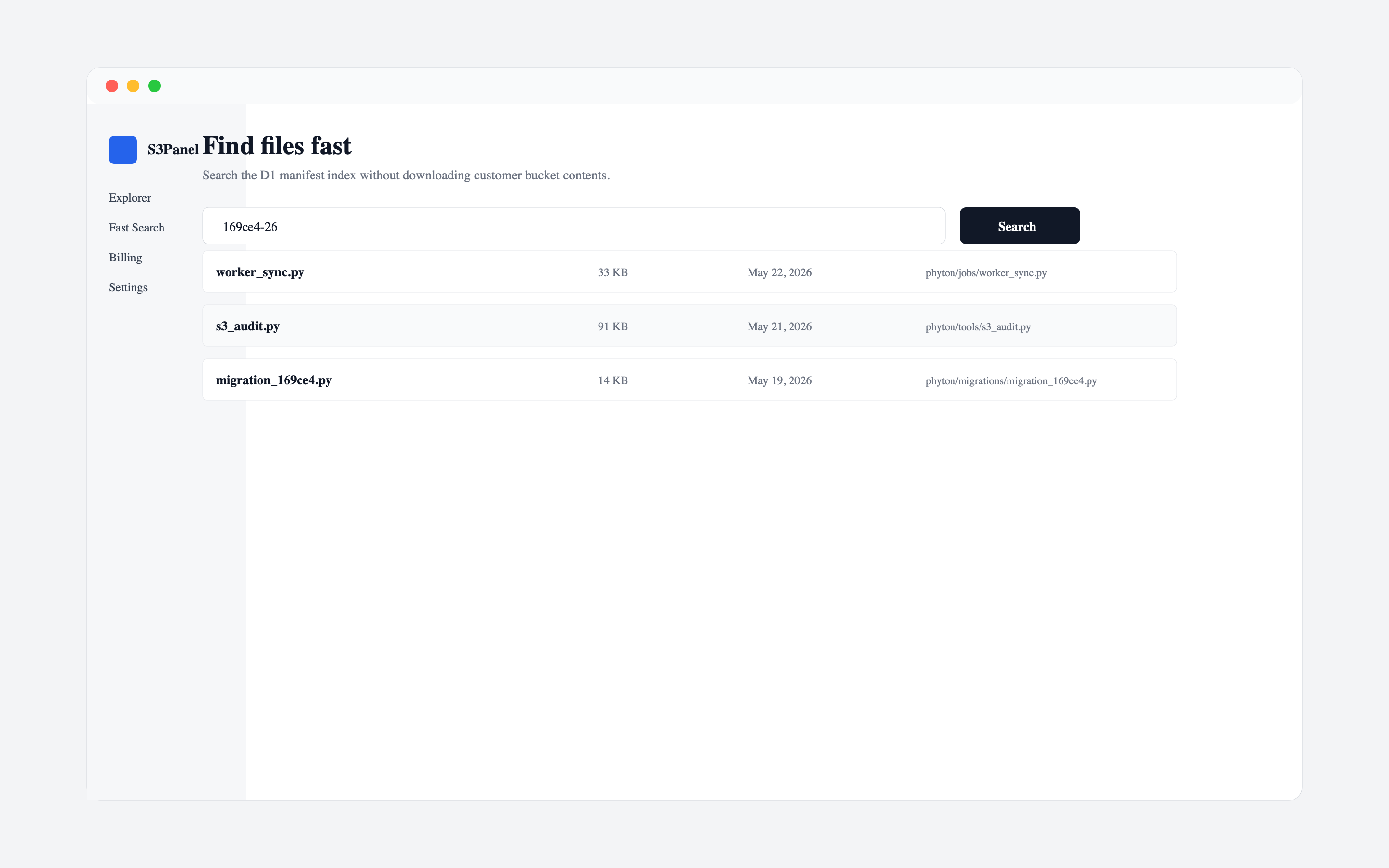
Use S3Panel search when you know part of the file name, customer ID, extension, or folder pattern. Manifest-backed search helps you jump to matching objects faster, then you can open the containing folder when you need more context.
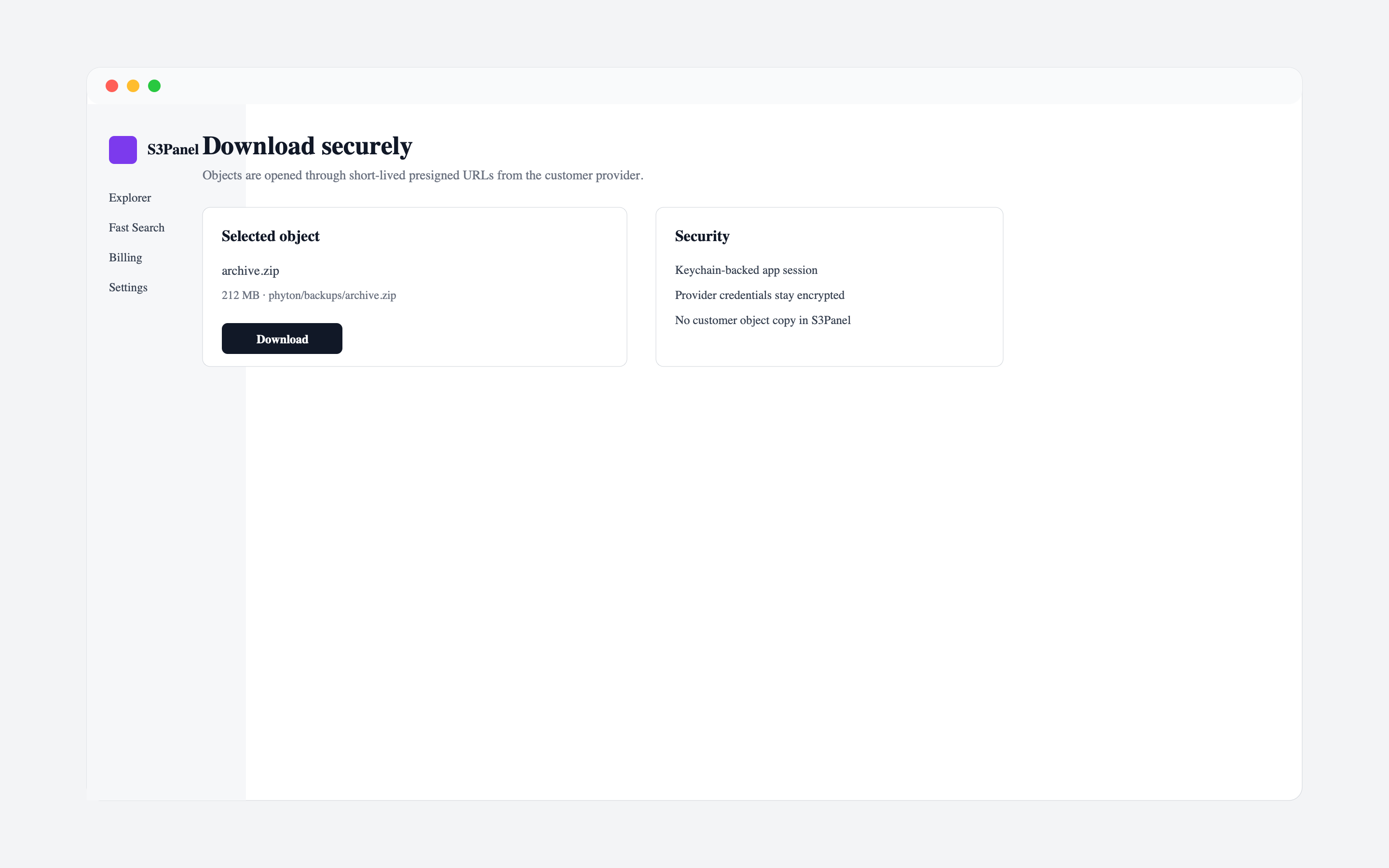
Do not turn on public bucket access just to send one file to a customer or teammate. Use a temporary presigned link instead. A short-lived link gives access to a selected object for a limited time while the bucket itself remains private.
For teams, this is cleaner than copying files into a separate transfer service. It also keeps the source of truth in R2.
S3Panel is strongest when you want a focused R2 operations workspace: browse, search, transfer, preview, metadata, sharing, and bucket admin in one product surface. If your goal is to mount R2 as a local Finder drive, a mount tool may be better. If your goal is to operate R2 buckets directly and safely, S3Panel is built for that workflow.
Continue with practical S3Panel guides for object storage teams.